 cduck.me
1# drawSvg
2
3A Python 3 library for programmatically generating SVG images (vector drawings) and rendering them or displaying them in an iPython notebook.
4
5Most common SVG tags are supported and others can easily be added by writing a small subclass of `DrawableBasicElement` or `DrawableParentElement`.
6
7An interactive [Jupyter notebook](https://jupyter.org) widget, `drawSvg.widgets.DrawingWidget`, is included that can update drawings based on mouse events.
8
9# Install
10
11drawSvg is available on PyPI:
12
13```
14$ pip3 install drawSvg
15```
16
17## Prerequisites
18
19Cairo needs to be installed separately. When Cairo is installed, drawSvg can output PNG or other image formats in addition to SVG. See platform-specific [instructions for Linux, Windows, and macOS from Cairo](https://www.cairographics.org/download/). Below are some examples for installing Cairo on Linux distributions and macOS.
20
21**Ubuntu**
22
23```
24$ sudo apt-get install libcairo2
25```
26
27**macOS**
28
29Using [homebrew](https://brew.sh/):
30
31```
32$ brew install cairo
33```
34
35# Examples
36
37### Basic drawing elements
38```python
39import drawSvg as draw
40
41d = draw.Drawing(200, 100, origin='center')
42
43d.append(draw.Lines(-80, -45,
44 70, -49,
45 95, 49,
46 -90, 40,
47 close=False,
48 fill='#eeee00',
49 stroke='black'))
50
51d.append(draw.Rectangle(0,0,40,50, fill='#1248ff'))
52d.append(draw.Circle(-40, -10, 30,
53 fill='red', stroke_width=2, stroke='black'))
54
55p = draw.Path(stroke_width=2, stroke='green',
56 fill='black', fill_opacity=0.5)
57p.M(-30,5) # Start path at point (-30, 5)
58p.l(60,30) # Draw line to (60, 30)
59p.h(-70) # Draw horizontal line to x=-70
60p.Z() # Draw line to start
61d.append(p)
62
63d.append(draw.ArcLine(60,-20,20,60,270,
64 stroke='red', stroke_width=5, fill='red', fill_opacity=0.2))
65d.append(draw.Arc(60,-20,20,60,270,cw=False,
66 stroke='green', stroke_width=3, fill='none'))
67d.append(draw.Arc(60,-20,20,270,60,cw=True,
68 stroke='blue', stroke_width=1, fill='black', fill_opacity=0.3))
69
70d.setPixelScale(2) # Set number of pixels per geometry unit
71#d.setRenderSize(400,200) # Alternative to setPixelScale
72d.saveSvg('example.svg')
73d.savePng('example.png')
74
75# Display in iPython notebook
76d.rasterize() # Display as PNG
77d # Display as SVG
78```
79
80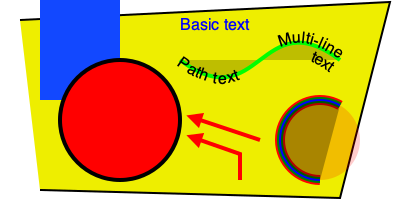
81
82### Gradients
83```python
84import drawSvg as draw
85
86d = draw.Drawing(1.5, 0.8, origin='center')
87
88d.draw(draw.Rectangle(-0.75,-0.5,1.5,1, fill='#ddd'))
89
90# Create gradient
91gradient = draw.RadialGradient(0,-0.35,0.7*10)
92gradient.addStop(0.5/0.7/10, 'green', 1)
93gradient.addStop(1/10, 'red', 0)
94
95# Draw a shape to fill with the gradient
96p = draw.Path(fill=gradient, stroke='black', stroke_width=0.002)
97p.arc(0,-0.35,0.7,30,120)
98p.arc(0,-0.35,0.5,120,30,cw=True, includeL=True)
99p.Z()
100d.append(p)
101
102# Draw another shape to fill with the same gradient
103p = draw.Path(fill=gradient, stroke='red', stroke_width=0.002)
104p.arc(0,-0.35,0.75,130,160)
105p.arc(0,-0.35,0,160,130,cw=True, includeL=True)
106p.Z()
107d.append(p)
108
109# Another gradient
110gradient2 = draw.LinearGradient(0.1,-0.35,0.1+0.6,-0.35+0.2)
111gradient2.addStop(0, 'green', 1)
112gradient2.addStop(1, 'red', 0)
113d.append(draw.Rectangle(0.1,-0.35,0.6,0.2,
114 stroke='black', stroke_width=0.002,
115 fill=gradient2))
116
117# Display
118d.setRenderSize(w=600)
119d
120```
121
122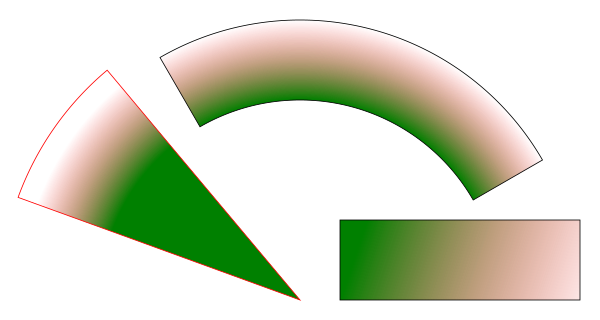
123
124### Duplicate geometry and clip paths
125```python
126import drawSvg as draw
127
128d = draw.Drawing(1.4, 1.4, origin='center')
129
130# Define clip path
131clip = draw.ClipPath()
132clip.append(draw.Rectangle(-.25,.25-1,1,1))
133
134# Draw a cropped circle
135c = draw.Circle(0,0,0.5, stroke_width='0.01', stroke='black',
136 fill_opacity=0.3, clip_path=clip,
137 id='circle')
138d.append(c)
139
140# Make a transparent copy, cropped again
141g = draw.Group(opacity=0.5, clip_path=clip)
142g.append(draw.Use('circle', 0.25,0.1))
143d.append(g)
144
145# Display
146d.setRenderSize(400)
147d.rasterize()
148```
149
150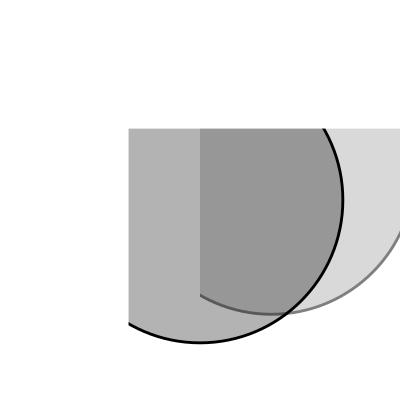
151
152### Implementing other SVG tags
153```python
154import drawSvg as draw
155
156# Subclass DrawingBasicElement if it cannot have child nodes
157# Subclass DrawingParentElement otherwise
158# Subclass DrawingDef if it must go between <def></def> tags in an SVG
159class Hyperlink(draw.DrawingParentElement):
160 TAG_NAME = 'a'
161 def __init__(self, href, target=None, **kwargs):
162 # Other init logic...
163 # Keyword arguments to super().__init__() correspond to SVG node
164 # arguments: stroke_width=5 -> stroke-width="5"
165 super().__init__(href=href, target=target, **kwargs)
166
167d = draw.Drawing(1, 1.2, origin='center')
168
169# Create hyperlink
170hlink = Hyperlink('https://www.python.org', target='_blank',
171 transform='skewY(-30)')
172# Add child elements
173hlink.append(draw.Circle(0,0,0.5, fill='green'))
174hlink.append(draw.Text('Hyperlink',0.2, 0,0, center=0.6, fill='white'))
175
176# Draw and display
177d.append(hlink)
178d.setRenderSize(200)
179d
180```
181
182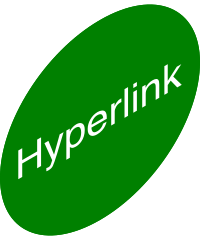
183
184### Interactive Widget
185```python
186import drawSvg as draw
187from drawSvg.widgets import DrawingWidget
188import hyperbolic.poincare.shapes as hyper # pip3 install hyperbolic
189
190# Create drawing
191d = draw.Drawing(2, 2, origin='center')
192d.setRenderSize(500)
193d.append(draw.Circle(0, 0, 1, fill='orange'))
194group = draw.Group()
195d.append(group)
196
197# Update the drawing based on user input
198click_list = []
199def redraw(points):
200 group.children.clear()
201 for x1, y1 in points:
202 for x2, y2 in points:
203 if (x1, y1) == (x2, y2): continue
204 p1 = hyper.Point.fromEuclid(x1, y1)
205 p2 = hyper.Point.fromEuclid(x2, y2)
206 if p1.distanceTo(p2) <= 2:
207 line = hyper.Line.fromPoints(*p1, *p2, segment=True)
208 group.draw(line, hwidth=0.2, fill='white')
209 for x, y in points:
210 p = hyper.Point.fromEuclid(x, y)
211 group.draw(hyper.Circle.fromCenterRadius(p, 0.1),
212 fill='green')
213redraw(click_list)
214
215# Create interactive widget and register mouse events
216widget = DrawingWidget(d)
217@widget.mousedown
218def mousedown(widget, x, y, info):
219 if (x**2 + y**2) ** 0.5 + 1e-5 < 1:
220 click_list.append((x, y))
221 redraw(click_list)
222 widget.refresh()
223@widget.mousemove
224def mousemove(widget, x, y, info):
225 if (x**2 + y**2) ** 0.5 + 1e-5 < 1:
226 redraw(click_list + [(x, y)])
227 widget.refresh()
228widget
229```
230
231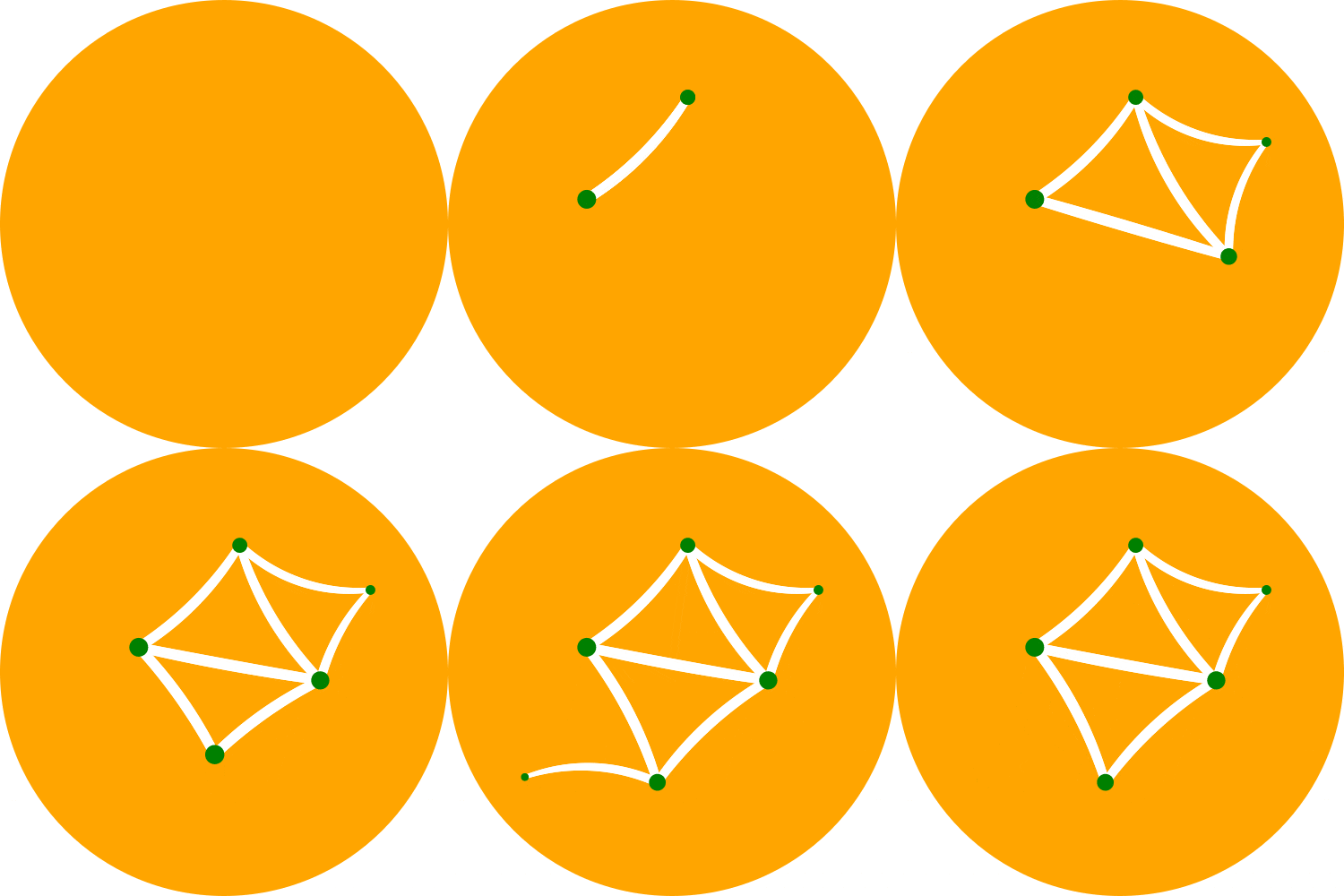
232
233### Animation
234```python
235import drawSvg as draw
236
237# Draw a frame of the animation
238def draw_frame(t):
239 d = draw.Drawing(2, 6.05, origin=(-1,-1.05))
240 d.setRenderSize(h=300)
241 d.append(draw.Rectangle(-2, -2, 4, 8, fill='white'))
242 d.append(draw.Rectangle(-1, -1.05, 2, 0.05, fill='brown'))
243 t = (t + 1) % 2 - 1
244 y = 4 - t**2 * 4
245 d.append(draw.Circle(0, y, 1, fill='lime'))
246 return d
247
248with draw.animate_jupyter(draw_frame, delay=0.05) as anim:
249# Or:
250#with draw.animate_video('example6.gif', draw_frame, duration=0.05
251# ) as anim:
252 # Add each frame to the animation
253 for i in range(20):
254 anim.draw_frame(i/10)
255 for i in range(20):
256 anim.draw_frame(i/10)
257 for i in range(20):
258 anim.draw_frame(i/10)
259```
260
261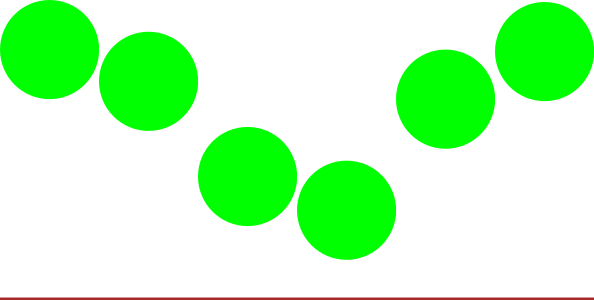
262
263### Asynchronous Animation in Jupyter
264```python
265# Jupyter cell 1:
266widget = AsyncAnimation(fps=10)
267widget
268# [Animation is displayed here (click to pause)]
269
270# Jupyter cell 2:
271global_variable = 'a'
272@widget.set_draw_frame # Animation above is automatically updated
273def draw_frame(secs=0):
274 # Draw something...
275 d = draw.Drawing(300, 40)
276 d.append(draw.Text(global_variable, 20, 0, 10))
277 d.append(draw.Text(str(secs), 20, 30, 10))
278 return d
279
280# Jupyter cell 3:
281global_variable = 'b' # Animation above now displays 'b'
282```