 cduck.me
1[](https://github.com/cduck/drawSvg/blob/master/examples/logo.svg)
2
3A Python 3 library for programmatically generating SVG images and animations that can render and display your drawings in a Jupyter notebook or Jupyter lab.
4
5Most common SVG tags are supported and others can easily be added by writing a small subclass of `DrawableBasicElement` or `DrawableParentElement`. [Nearly all SVG attributes](https://developer.mozilla.org/en-US/docs/Web/SVG) are supported via keyword args (e.g. Python keyword argument `fill_opacity=0.5` becomes SVG attribute `fill-opacity="0.5"`).
6
7An interactive [Jupyter notebook](https://jupyter.org) widget, `drawsvg.widgets.DrawingWidget`, [is included](#interactive-widget) that can update drawings based on mouse events. The widget does not yet work in Jupyter lab.
8
9
10# Install
11
12Drawsvg is available on PyPI:
13```bash
14$ python3 -m pip install "drawsvg~=2.0"
15```
16
17To enable raster image support (PNG, MP4, and GIF), follow the [full-feature install instructions](#full-feature-install).
18
19
20## Upgrading from version 1.x
21
22Major breaking changes:
23
24- camelCase method and argument names are now snake\_case and the package name is lowercase (except for arguments that correspond to camelCase SVG attributes).
25- The default coordinate system y-axis now matches the SVG coordinate system (y increases down the screen, x increases right)
26- How to fix `ModuleNotFoundError: No module named 'drawSvg'` (with a capital S)? Either pip install `"drawSvg~=1.9"` or update your code for drawsvg 2.x (for example, change `drawSvg` to `drawsvg` and `d.saveSvg` to `d.save_svg`).
27
28
29# Examples
30
31### Basic drawing elements
32```python
33import drawsvg as draw
34
35d = draw.Drawing(200, 100, origin='center')
36
37# Draw an irregular polygon
38d.append(draw.Lines(-80, 45,
39 70, 49,
40 95, -49,
41 -90, -40,
42 close=False,
43 fill='#eeee00',
44 stroke='black'))
45
46# Draw a rectangle
47r = draw.Rectangle(-80, -50, 40, 50, fill='#1248ff')
48r.append_title("Our first rectangle") # Add a tooltip
49d.append(r)
50
51# Draw a circle
52d.append(draw.Circle(-40, 10, 30,
53 fill='red', stroke_width=2, stroke='black'))
54
55# Draw an arbitrary path (a triangle in this case)
56p = draw.Path(stroke_width=2, stroke='lime', fill='black', fill_opacity=0.2)
57p.M(-10, -20) # Start path at point (-10, -20)
58p.C(30, 10, 30, -50, 70, -20) # Draw a curve to (70, -20)
59d.append(p)
60
61# Draw text
62d.append(draw.Text('Basic text', 8, -10, -35, fill='blue')) # 8pt text at (-10, -35)
63d.append(draw.Text('Path text', 8, path=p, text_anchor='start', line_height=1))
64d.append(draw.Text(['Multi-line', 'text'], 8, path=p, text_anchor='end', center=True))
65
66# Draw multiple circular arcs
67d.append(draw.ArcLine(60, 20, 20, 60, 270,
68 stroke='red', stroke_width=5, fill='red', fill_opacity=0.2))
69d.append(draw.Arc(60, 20, 20, 90, -60, cw=True,
70 stroke='green', stroke_width=3, fill='none'))
71d.append(draw.Arc(60, 20, 20, -60, 90, cw=False,
72 stroke='blue', stroke_width=1, fill='black', fill_opacity=0.3))
73
74# Draw arrows
75arrow = draw.Marker(-0.1, -0.51, 0.9, 0.5, scale=4, orient='auto')
76arrow.append(draw.Lines(-0.1, 0.5, -0.1, -0.5, 0.9, 0, fill='red', close=True))
77p = draw.Path(stroke='red', stroke_width=2, fill='none',
78 marker_end=arrow) # Add an arrow to the end of a path
79p.M(20, 40).L(20, 27).L(0, 20) # Chain multiple path commands
80d.append(p)
81d.append(draw.Line(30, 20, 0, 10,
82 stroke='red', stroke_width=2, fill='none',
83 marker_end=arrow)) # Add an arrow to the end of a line
84
85d.set_pixel_scale(2) # Set number of pixels per geometry unit
86#d.set_render_size(400, 200) # Alternative to set_pixel_scale
87d.save_svg('example.svg')
88d.save_png('example.png')
89
90# Display in Jupyter notebook
91#d.rasterize() # Display as PNG
92d # Display as SVG
93```
94
95[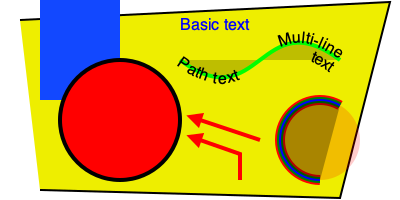](https://github.com/cduck/drawsvg/blob/master/examples/example1.svg)
96
97### SVG-native animation with playback controls
98```python
99import drawsvg as draw
100
101d = draw.Drawing(400, 200, origin='center',
102 animation_config=draw.types.SyncedAnimationConfig(
103 # Animation configuration
104 duration=8, # Seconds
105 show_playback_progress=True,
106 show_playback_controls=True))
107d.append(draw.Rectangle(-200, -100, 400, 200, fill='#eee')) # Background
108d.append(draw.Circle(0, 0, 40, fill='green')) # Center circle
109
110# Animation
111circle = draw.Circle(0, 0, 0, fill='gray') # Moving circle
112circle.add_key_frame(0, cx=-100, cy=0, r=0)
113circle.add_key_frame(2, cx=0, cy=-100, r=40)
114circle.add_key_frame(4, cx=100, cy=0, r=0)
115circle.add_key_frame(6, cx=0, cy=100, r=40)
116circle.add_key_frame(8, cx=-100, cy=0, r=0)
117d.append(circle)
118r = draw.Rectangle(0, 0, 0, 0, fill='silver') # Moving square
119r.add_key_frame(0, x=-100, y=0, width=0, height=0)
120r.add_key_frame(2, x=0-20, y=-100-20, width=40, height=40)
121r.add_key_frame(4, x=100, y=0, width=0, height=0)
122r.add_key_frame(6, x=0-20, y=100-20, width=40, height=40)
123r.add_key_frame(8, x=-100, y=0, width=0, height=0)
124d.append(r)
125
126# Changing text
127draw.native_animation.animate_text_sequence(
128 d,
129 [0, 2, 4, 6],
130 ['0', '1', '2', '3'],
131 30, 0, 1, fill='yellow', center=True)
132
133# Save as a standalone animated SVG or HTML
134d.save_svg('playback-controls.svg')
135d.save_html('playback-controls.html')
136
137# Display in Jupyter notebook
138#d.display_image() # Display SVG as an image (will not be interactive)
139#d.display_iframe() # Display as interactive SVG (alternative)
140#d.as_gif('orbit.gif', fps=10) # Render as a GIF image, optionally save to file
141#d.as_mp4('orbig.mp4', fps=60) # Render as an MP4 video, optionally save to file
142d.display_inline() # Display as interactive SVG
143```
144
145[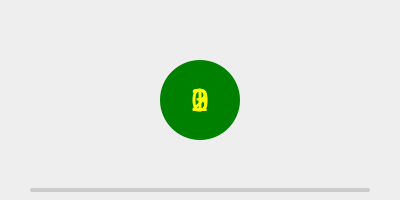](https://github.com/cduck/drawsvg/blob/master/examples/playback-controls.svg)
146
147Note: GitHub blocks the playback controls.
148Download the above SVG and open it in a web browser to try.
149
150https://user-images.githubusercontent.com/2476062/221400434-1529d237-e9bf-4363-a143-0ece75cd349a.mp4
151
152### Patterns and gradients
153```python
154import drawsvg as draw
155
156d = draw.Drawing(1.5, 0.8, origin='center')
157
158# Background pattern (not supported by Cairo, d.rasterize() will not show it)
159pattern = draw.Pattern(width=0.13, height=0.23)
160pattern.append(draw.Rectangle(0, 0, .1, .1, fill='yellow'))
161pattern.append(draw.Rectangle(0, .1, .1, .1, fill='orange'))
162d.draw(draw.Rectangle(-0.75, -0.5, 1.5, 1, fill=pattern, fill_opacity=0.4))
163
164# Create gradient
165gradient = draw.RadialGradient(0, 0.35, 0.7*10)
166gradient.add_stop(0.5/0.7/10, 'green', 1)
167gradient.add_stop(1/10, 'red', 0)
168
169# Draw a shape to fill with the gradient
170p = draw.Path(fill=gradient, stroke='black', stroke_width=0.002)
171p.arc(0, 0.35, 0.7, -30, -120, cw=False)
172p.arc(0, 0.35, 0.5, -120, -30, cw=True, include_l=True)
173p.Z()
174d.append(p)
175
176# Draw another shape to fill with the same gradient
177p = draw.Path(fill=gradient, stroke='red', stroke_width=0.002)
178p.arc(0, 0.35, 0.75, -130, -160, cw=False)
179p.arc(0, 0.35, 0, -160, -130, cw=True, include_l=True)
180p.Z()
181d.append(p)
182
183# Another gradient
184gradient2 = draw.LinearGradient(0.1, 0.35, 0.1+0.6, 0.35+0.2)
185gradient2.add_stop(0, 'green', 1)
186gradient2.add_stop(1, 'red', 0)
187d.append(draw.Rectangle(0.1, 0.15, 0.6, 0.2,
188 stroke='black', stroke_width=0.002,
189 fill=gradient2))
190
191# Display
192d.set_render_size(w=600)
193d
194```
195
196[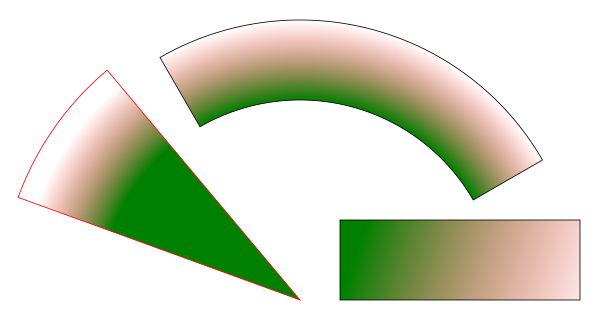](https://github.com/cduck/drawsvg/blob/master/examples/example2.svg)
197
198### Duplicate geometry and clip paths
199```python
200import drawsvg as draw
201
202d = draw.Drawing(1.4, 1.4, origin='center')
203
204# Define clip path
205clip = draw.ClipPath()
206clip.append(draw.Rectangle(-.25, -.25, 1, 1))
207
208# Draw a cropped circle
209circle = draw.Circle(0, 0, 0.5,
210 stroke_width='0.01', stroke='black',
211 fill_opacity=0.3, clip_path=clip)
212d.append(circle)
213
214# Make a transparent copy, cropped again
215g = draw.Group(opacity=0.5, clip_path=clip)
216# Here, circle is not directly appended to the drawing.
217# drawsvg recognizes that `Use` references `circle` and automatically adds
218# `circle` to the <defs></defs> section of the SVG.
219g.append(draw.Use(circle, 0.25, -0.1))
220d.append(g)
221
222# Display
223d.set_render_size(400)
224#d.rasterize() # Display as PNG
225d # Display as SVG
226```
227
228[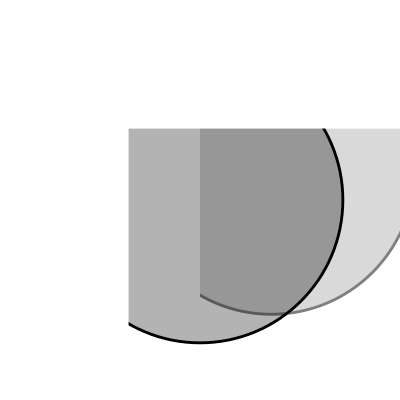](https://github.com/cduck/drawsvg/blob/master/examples/example3.svg)
229
230### Organizing and duplicating drawing elements
231```python
232import drawsvg as draw
233
234d = draw.Drawing(300, 100)
235d.set_pixel_scale(2)
236
237# Use groups to contain other elements
238# Children elements of groups inherit the coordinate system (transform)
239# and attribute values
240group = draw.Group(fill='orange', transform='rotate(-20)')
241group.append(draw.Rectangle(0, 10, 20, 40)) # This rectangle will be orange
242group.append(draw.Circle(30, 40, 10)) # This circle will also be orange
243group.append(draw.Circle(50, 40, 10, fill='green')) # This circle will not
244d.append(group)
245
246# Use the Use element to make duplicates of elements
247# Each duplicate can be placed at an offset (x, y) location and any additional
248# attributes (like fill color) are inherited if the element didn't specify them.
249d.append(draw.Use(group, 80, 0, stroke='black', stroke_width=1))
250d.append(draw.Use(group, 80, 20, stroke='blue', stroke_width=2))
251d.append(draw.Use(group, 80, 40, stroke='red', stroke_width=3))
252
253d.display_inline()
254```
255
256[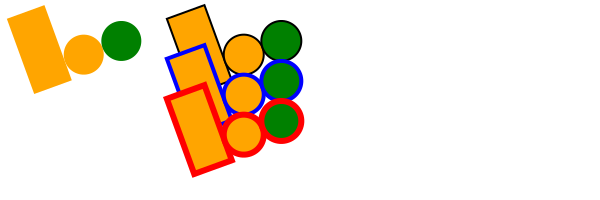](https://github.com/cduck/drawsvg/blob/master/examples/example8.svg)
257
258### Implementing other SVG tags
259```python
260import drawsvg as draw
261
262# Subclass DrawingBasicElement if it cannot have child nodes
263# Subclass DrawingParentElement otherwise
264# Subclass DrawingDef if it must go between <def></def> tags in an SVG
265class Hyperlink(draw.DrawingParentElement):
266 TAG_NAME = 'a'
267 def __init__(self, href, target=None, **kwargs):
268 # Other init logic...
269 # Keyword arguments to super().__init__() correspond to SVG node
270 # arguments: stroke_width=5 -> <a stroke-width="5" ...>...</a>
271 super().__init__(href=href, target=target, **kwargs)
272
273d = draw.Drawing(1, 1.2, origin='center')
274
275# Create hyperlink
276hlink = Hyperlink('https://www.python.org', target='_blank',
277 transform='skewY(-30)')
278# Add child elements
279hlink.append(draw.Circle(0, 0, 0.5, fill='green'))
280hlink.append(draw.Text('Hyperlink', 0.2, 0, 0, center=0.6, fill='white'))
281
282# Draw and display
283d.append(hlink)
284d.set_render_size(200)
285d
286```
287
288[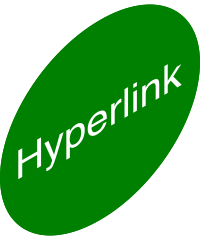](https://github.com/cduck/drawsvg/blob/master/examples/example4.svg)
289
290### Animation with the SVG Animate Tag
291```python
292import drawsvg as draw
293
294d = draw.Drawing(200, 200, origin='center')
295
296# Animate the position and color of circle
297c = draw.Circle(0, 0, 20, fill='red')
298# See for supported attributes:
299# https://developer.mozilla.org/en-US/docs/Web/SVG/Element/animate
300c.append_anim(draw.Animate('cy', '6s', '-80;80;-80',
301 repeatCount='indefinite'))
302c.append_anim(draw.Animate('cx', '6s', '0;80;0;-80;0',
303 repeatCount='indefinite'))
304c.append_anim(draw.Animate('fill', '6s', 'red;green;blue;yellow',
305 calc_mode='discrete',
306 repeatCount='indefinite'))
307d.append(c)
308
309# Animate a black circle around an ellipse
310ellipse = draw.Path()
311ellipse.M(-90, 0)
312ellipse.A(90, 40, 360, True, True, 90, 0) # Ellipse path
313ellipse.A(90, 40, 360, True, True, -90, 0)
314ellipse.Z()
315c2 = draw.Circle(0, 0, 10)
316# See for supported attributes:
317# https://developer.mozilla.org/en-US/docs/Web/SVG/Element/animate_motion
318c2.append_anim(draw.AnimateMotion(ellipse, '3s',
319 repeatCount='indefinite'))
320# See for supported attributes:
321# https://developer.mozilla.org/en-US/docs/Web/SVG/Element/animate_transform
322c2.append_anim(draw.AnimateTransform('scale', '3s', '1,2;2,1;1,2;2,1;1,2',
323 repeatCount='indefinite'))
324d.append(c2)
325
326d.save_svg('animated.svg') # Save to file
327d # Display in Jupyter notebook
328```
329
330[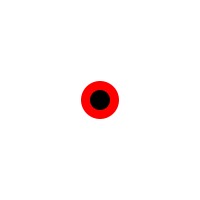](https://github.com/cduck/drawsvg/blob/master/examples/animated.svg)
331
332### Interactive Widget
333```python
334import drawsvg as draw
335from drawsvg.widgets import DrawingWidget
336import hyperbolic.poincare as hyper # python3 -m pip install hyperbolic
337from hyperbolic import euclid
338
339# Create drawing
340d = draw.Drawing(2, 2, origin='center', context=draw.Context(invert_y=True))
341d.set_render_size(500)
342d.append(draw.Circle(0, 0, 1, fill='orange'))
343group = draw.Group()
344d.append(group)
345
346# Update the drawing based on user input
347click_list = []
348def redraw(points):
349 group.children.clear()
350 for x1, y1 in points:
351 for x2, y2 in points:
352 if (x1, y1) == (x2, y2): continue
353 p1 = hyper.Point.from_euclid(x1, y1)
354 p2 = hyper.Point.from_euclid(x2, y2)
355 if p1.distance_to(p2) <= 2:
356 line = hyper.Line.from_points(*p1, *p2, segment=True)
357 group.draw(line, hwidth=0.2, fill='white')
358 for x, y in points:
359 p = hyper.Point.from_euclid(x, y)
360 group.draw(hyper.Circle.from_center_radius(p, 0.1),
361 fill='green')
362redraw(click_list)
363
364# Create interactive widget and register mouse events
365widget = DrawingWidget(d)
366@widget.mousedown
367def mousedown(widget, x, y, info):
368 if (x**2 + y**2) ** 0.5 + 1e-5 < 1:
369 click_list.append((x, y))
370 redraw(click_list)
371 widget.refresh()
372@widget.mousemove
373def mousemove(widget, x, y, info):
374 if (x**2 + y**2) ** 0.5 + 1e-5 < 1:
375 redraw(click_list + [(x, y)])
376 widget.refresh()
377widget
378```
379
380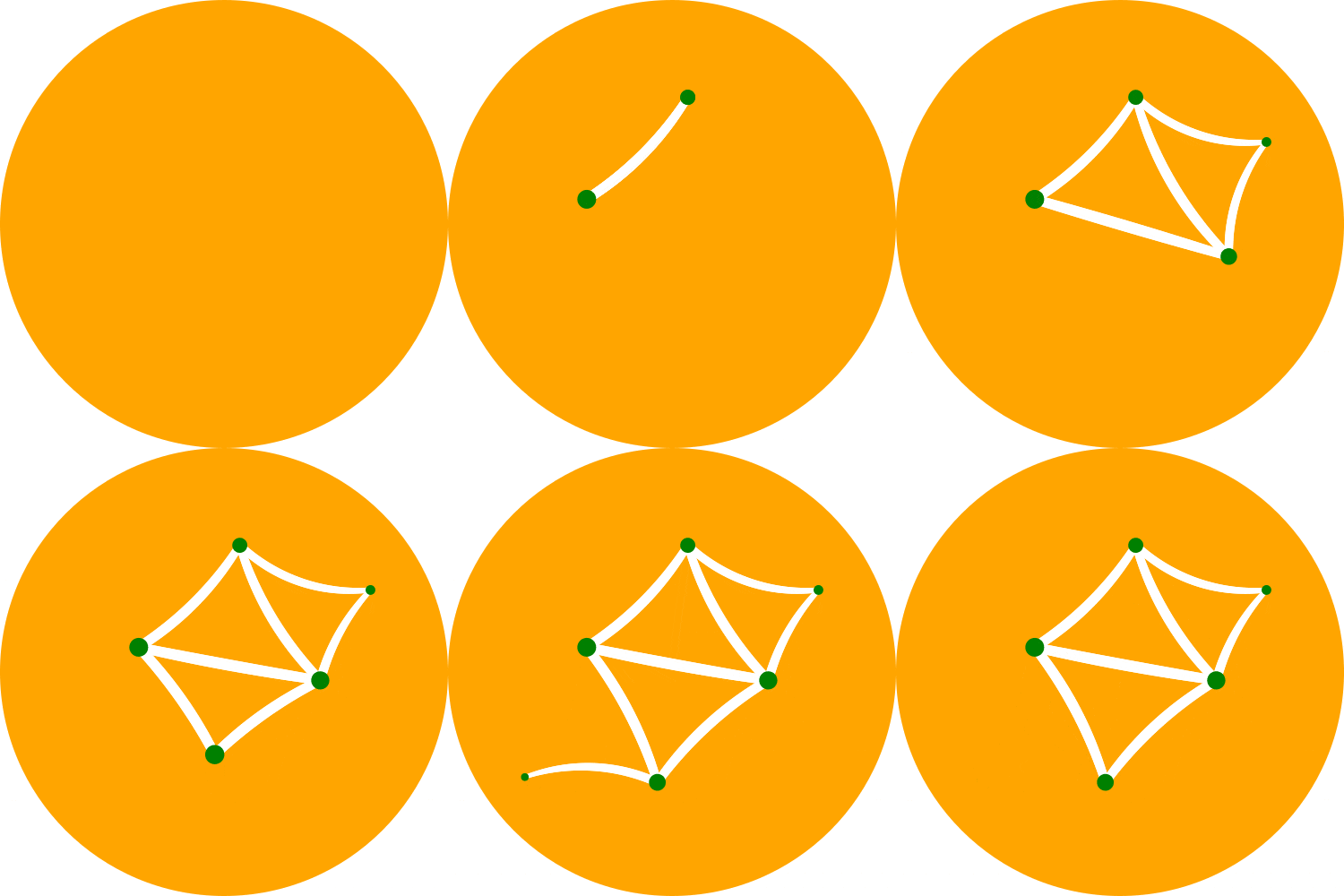
381
382Note: The above example currently only works in `jupyter notebook`, not `jupyter lab`.
383
384### Frame-by-Frame Animation
385```python
386import drawsvg as draw
387
388# Draw a frame of the animation
389def draw_frame(t):
390 d = draw.Drawing(2, 6.05, origin=(-1, -5))
391 d.set_render_size(h=300)
392 d.append(draw.Rectangle(-2, -6, 4, 8, fill='white'))
393 d.append(draw.Rectangle(-1, 1, 2, 0.05, fill='brown'))
394 t = (t + 1) % 2 - 1
395 y = t**2 * 4 - 4
396 d.append(draw.Circle(0, y, 1, fill='lime'))
397 return d
398
399with draw.frame_animate_jupyter(draw_frame, delay=0.05) as anim:
400# Or:
401#with draw.animate_video('example6.gif', draw_frame, duration=0.05
402# ) as anim:
403 # Add each frame to the animation
404 for i in range(20):
405 anim.draw_frame(i/10)
406 for i in range(20):
407 anim.draw_frame(i/10)
408 for i in range(20):
409 anim.draw_frame(i/10)
410```
411
412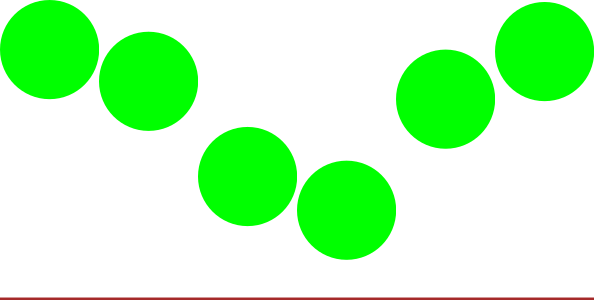
413
414### Asynchronous Frame-based Animation in Jupyter
415```python
416# Jupyter cell 1:
417import drawsvg as draw
418from drawsvg.widgets import AsyncAnimation
419widget = AsyncAnimation(fps=10)
420widget
421# [Animation is displayed here (click to pause)]
422
423# Jupyter cell 2:
424global_variable = 'a'
425@widget.set_draw_frame # Animation above is automatically updated
426def draw_frame(secs=0):
427 # Draw something...
428 d = draw.Drawing(100, 40)
429 d.append(draw.Text(global_variable, 20, 0, 30))
430 d.append(draw.Text('{:0.1f}'.format(secs), 20, 30, 30))
431 return d
432
433# Jupyter cell 3:
434global_variable = 'b' # Animation above now displays 'b'
435```
436
437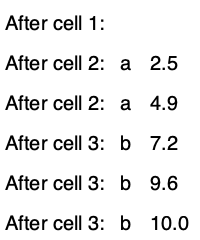
438
439Note: The above example currently only works in `jupyter notebook`, not `jupyter lab`.
440
441
442---
443
444# Full-feature install
445Drawsvg may be either be installed with no dependencies (only SVG and SVG-native animation will work):
446```bash
447$ python3 -m pip install "drawsvg~=2.0"
448```
449
450Or drawsvg may be installed with extra dependencies to support PNG, MP4, and GIF output:
451```bash
452$ python3 -m pip install "drawsvg[all]~=2.0"
453```
454
455An additional required package, [Cairo](https://www.cairographics.org/download/), cannot be installed with pip and must be installed separately. When Cairo is installed, drawsvg can output PNG and other image formats in addition to SVG. Install it with your preferred package manager. Examples:
456
457**Ubuntu**
458
459```bash
460$ sudo apt install libcairo2
461```
462
463**macOS**
464
465Using [homebrew](https://brew.sh/) (may require a Python version installed with `brew install python`):
466
467```bash
468$ brew install cairo
469```
470
471**Any platform**
472
473Using [Anaconda](https://docs.conda.io/en/latest/miniconda.html) (may require Python and cairo installed in the same conda environment):
474
475```bash
476$ conda install -c anaconda cairo
477```