the home site for me: also iteration 3 or 4 of my site
 dunkirk.sh
1+++
2title = "Garmin Vivoactive 4 with Home Assistant"
3date = 2023-08-04
4slug = "garmin-vivoactive-homeassistant"
5description = "I wanted to control my smart home from my Garmin Vivoactive 4 but there wasn't a direct way. I found an app called APICall that lets my watch call webhooks. Home Assistant worked better than the Google Assistant integration I originally planned, and I was able to set it up in under 10 minutes using Docker. Now I can control things like Spotify playback with my watch using APICall and Home Assistant!"
6
7[taxonomies]
8tags = ["essays", "archival"]
9+++
10
11This morning I saw a [Reddit post](https://libreddit.kieranklukas.com/r/flipperzero/comments/ybjsvt/flipper_control_via_smartwatch/) where someone connected their flipper zero to a Fossil HR through [Gadgetbridge](https://gadgetbridge.org/). I immediately started [ducking,](https://libreddit.kieranklukas.com/r/duckduckgo/wiki/index#wiki_what_is_searching_on_duckduckgo_called.3F) trying to find out if I could do the same with my Garmin Vivoactive 4 but ended up realizing that there was no apparent way to connect the two. I did however find a widget compatible with my watch named [APICall](https://apps.garmin.com/en-US/apps/ac9a81ab-a52d-41b3-8c14-940a9de37544) on the Connect IQ store.
12
13<!-- more -->
14
15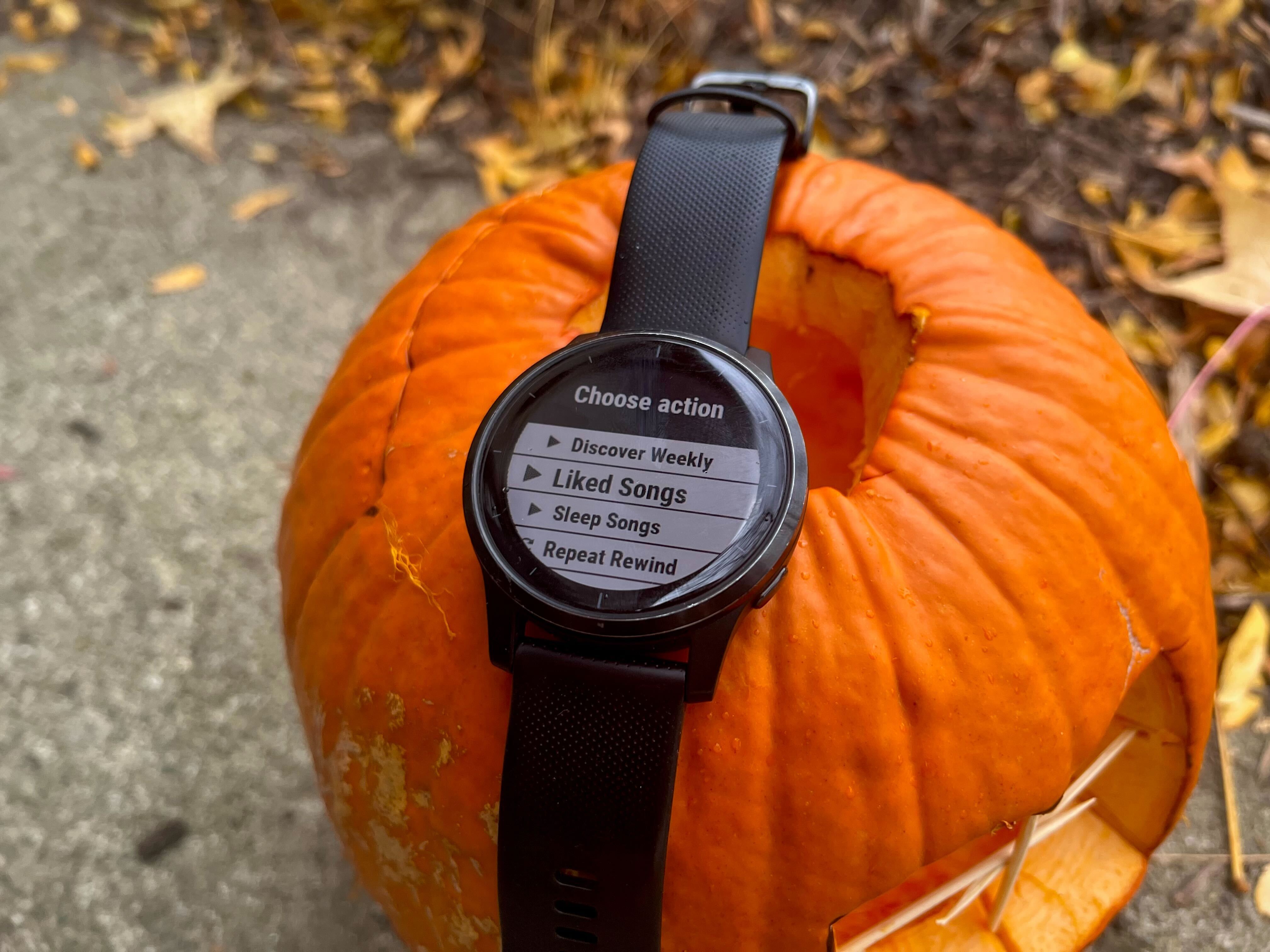{caption="I can control spotify from my watch via api hooks how bout you?"}
16
17This widget interested me because it allowed me to call any webhook I wanted utilizing the onboard Wi-Fi as well as through the Connect IQ app. This was a very important feature for me because I can’t get the app to run on LineageOS as it keeps asking for the location permission even though it was already granted.
18
19My first idea was to try to broadcast a message to the Google home using [ismarslomic/google-assistant-broadcast,](https://github.com/ismarslomic/google-assistant-broadcast) but it ended up being broken. I decided, therefore, that since the project was unmaintained to try Home Assistant with the [Google Assistant SDK](https://www.home-assistant.io/integrations/google_assistant_sdk#configuration).
20
21The setup was amazingly quick, using the [linuxserver/docker-homeassistant](https://github.com/linuxserver/docker-homeassistant) image and their sample compose file, I was able to get it fully running in under 10 minutes.
22
23Now for the Google Assistant SDK / APICall / Home Assistant tutorial. The first thing you want to do is follow this guide, [Google Assistant SDK - Home Assistant](https://www.home-assistant.io/integrations/google_assistant_sdk#configuration), to install the Assistant SDK. Once you have completed that, go to Settings / Automations & Services.
24
25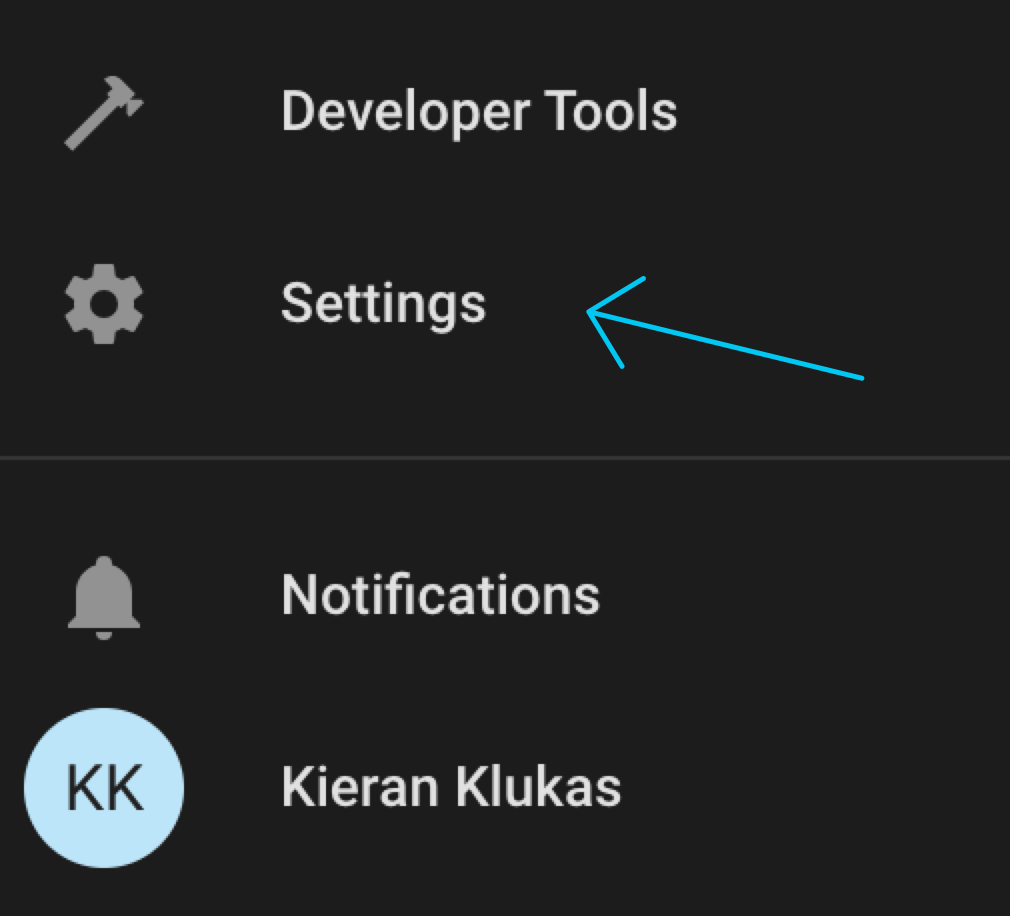
26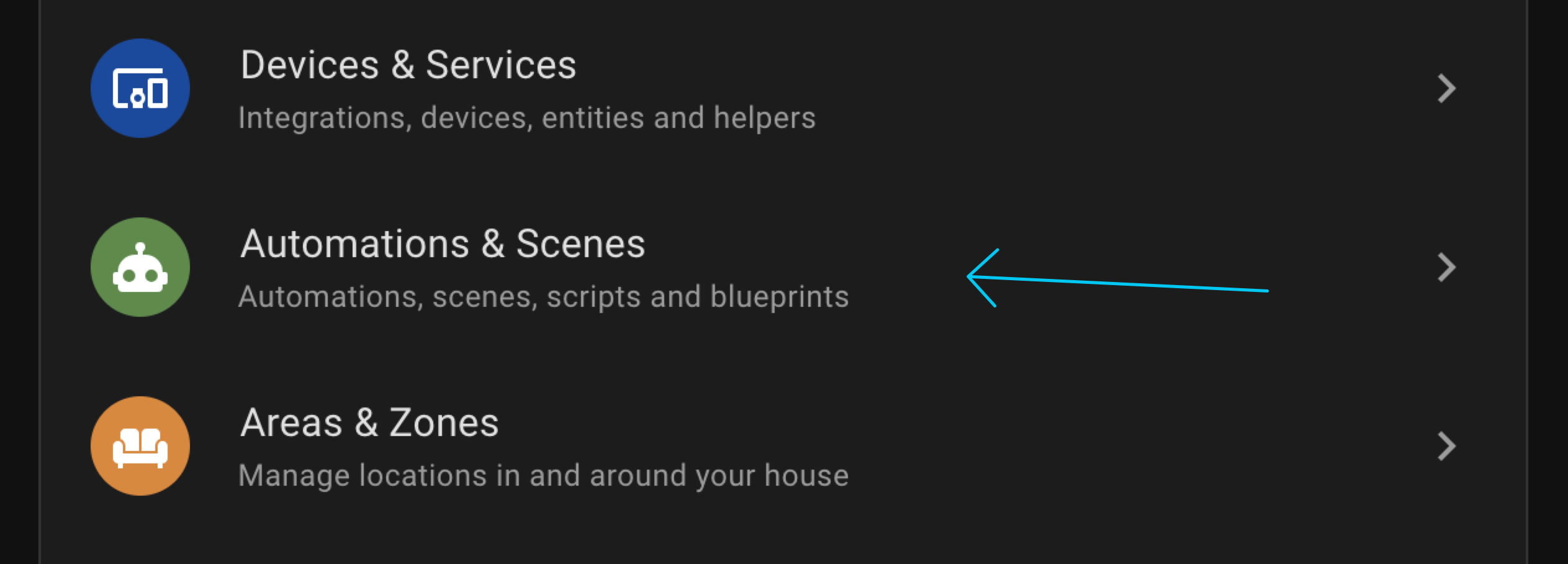
27
28This is where you can create the action that you want to trigger with your smartwatch. The first thing you need to do is to create a new automation. Save and name the automation you just created. Now add a trigger, scroll to the bottom of the list and select webhook. If done successfully, it will look like the image below.
29
30
31
32
33Now add an action. I decided to use the media player to play a song on Spotify. Also go back to the webhook section and click the settings icon next to the webhook ID. Change the settings to reflect below screenshot.
34
35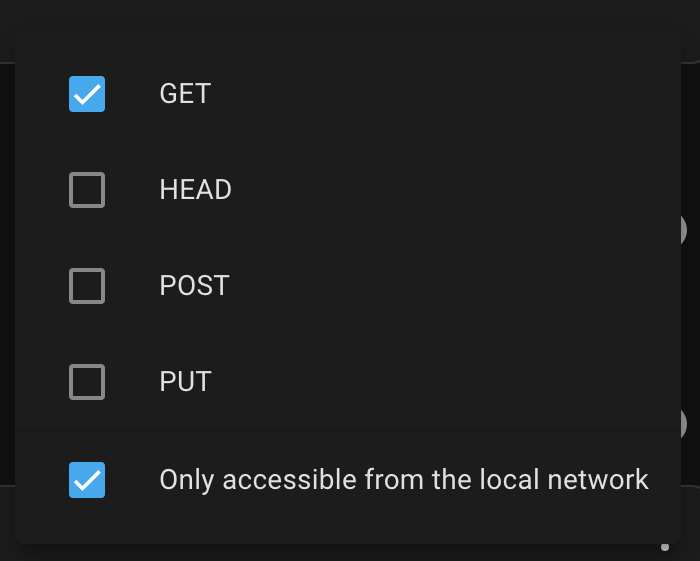
36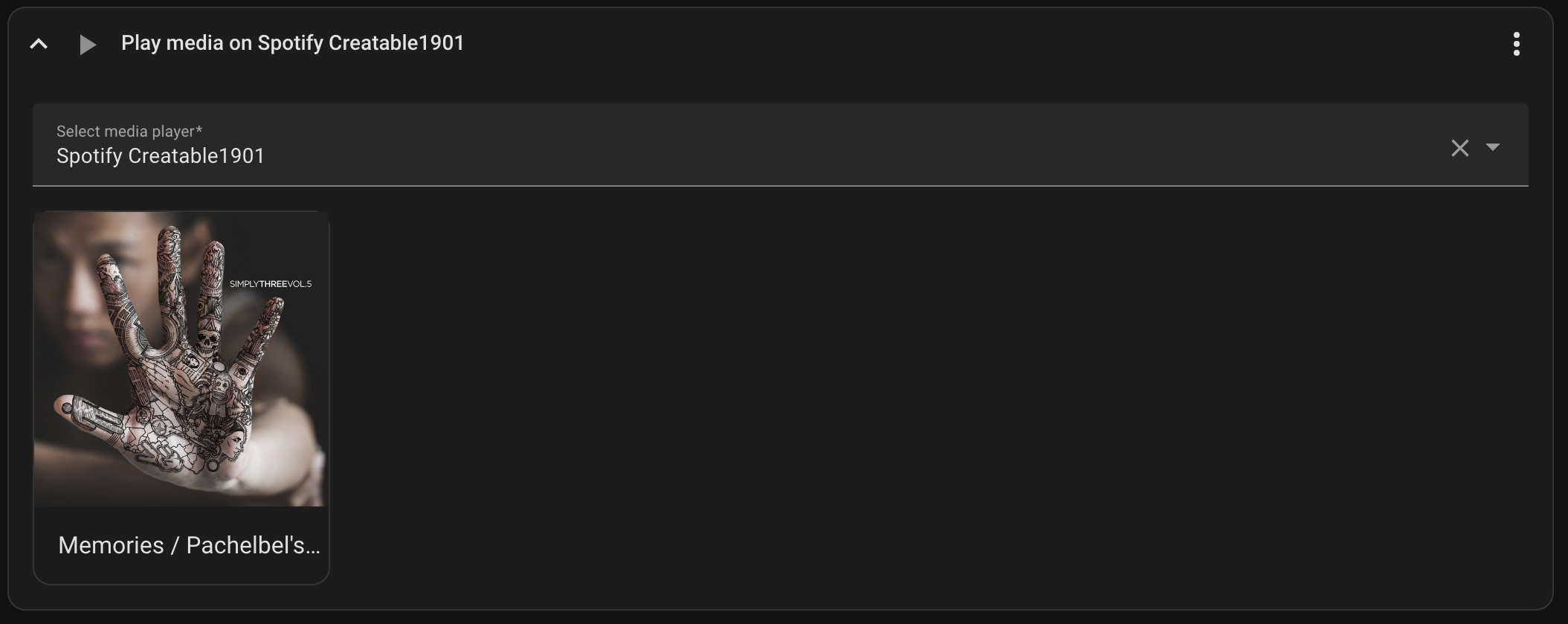
37
38Now for the fun part. Download [APICall](https://apps.garmin.com/en-US/apps/ac9a81ab-a52d-41b3-8c14-940a9de37544) onto your Garmin smartwatch and go to the configuration section for the app.
39
40> Note: I’ll be using Garmin Express on my MacBook, but you can also use the Garmin Connect app on a phone.
41
42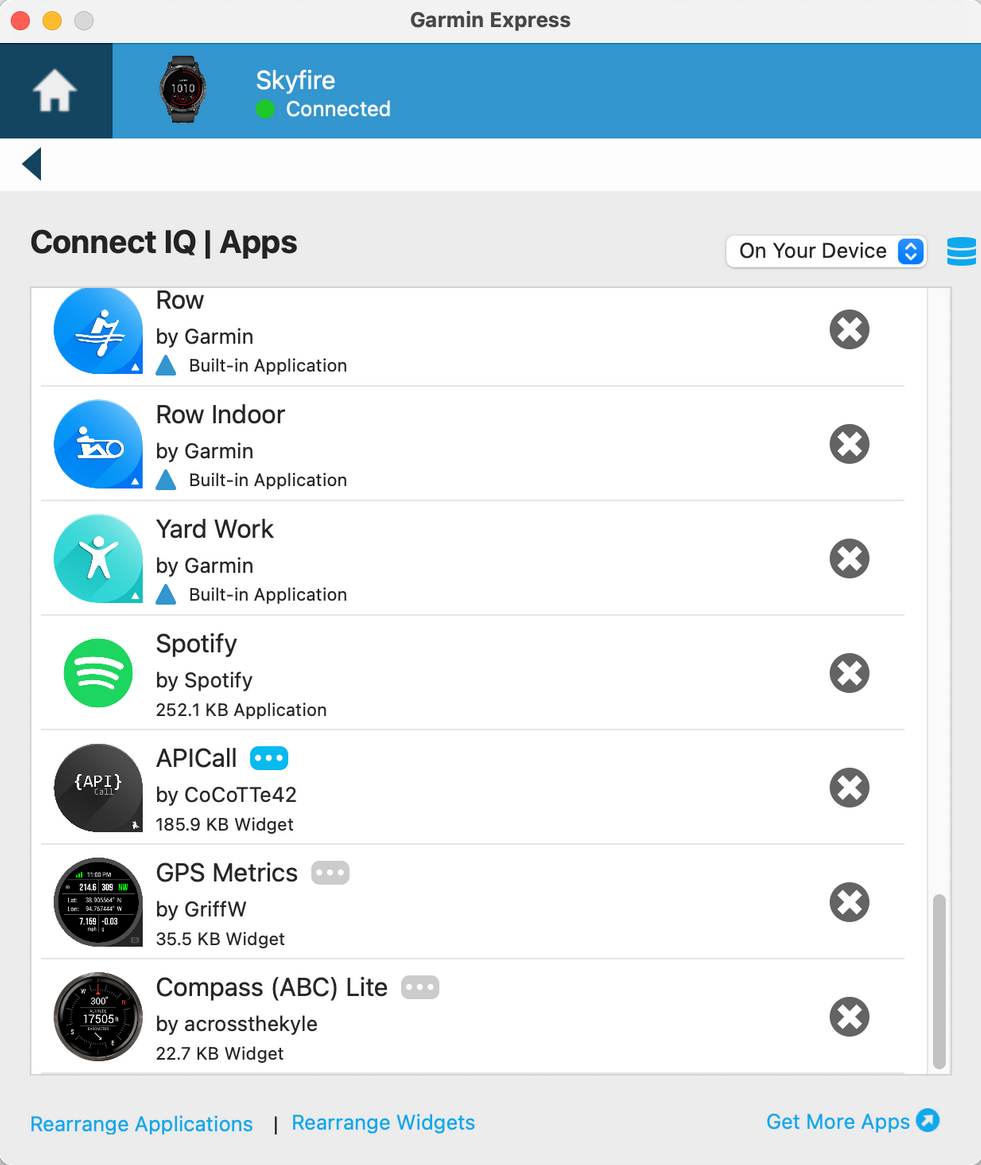
43
44If you are using Garmin Express, then you can access the app settings by selecting the 3 dots next to the app. You will have 36 possible API calls that you can enter.
45
46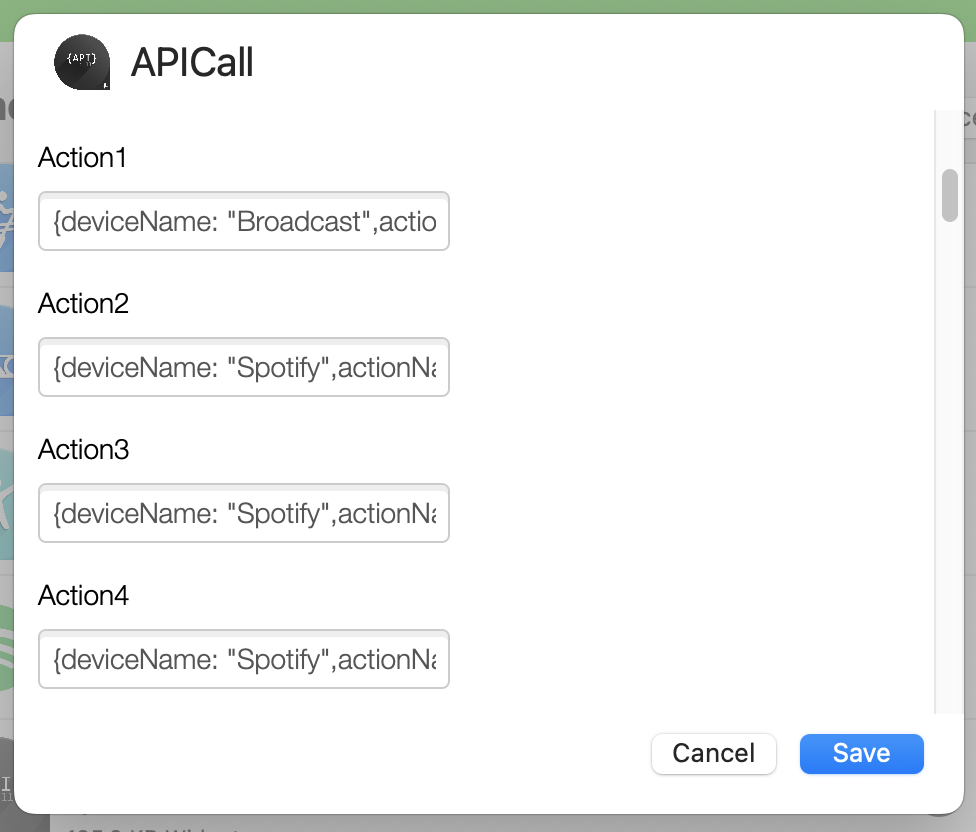{caption="Yes that formatting is atrocious but it works at least!"}
47
48> webhooks
49```ts
50{deviceName: "Broadcast",actionName: "Chores",url: "http://192.168.40.21:8123/api/webhook/Aere",method: "GET",headers:"{"Content-Type":"application/x-www-form-urlencoded"}"}
51{deviceName: "Spotify",actionName: "Discover Weekly",url: "http://192.168.40.21:8123/api/webhook/-djNd5aMidD6Q3w2jgYDu50ix",method: "GET",headers:"{"Content-Type":"application/x-www-form-urlencoded"}",actionIcon:40}
52{deviceName: "Spotify",actionName: "Liked Songs",url: "http://192.168.40.21:8123/api/webhook/liked-songs-6TrVEY-TzVsAeFX8Mt8FUpJN",method: "GET",headers:"{"Content-Type":"application/x-www-form-urlencoded"}",actionIcon:40}
53{deviceName: "Spotify",actionName: "Sleep Songs",url: "http://192.168.40.21:8123/api/webhook/sleep-songs-jA1nrTpc9PuKumvzNDFteBDK",method: "GET",headers:"{"Content-Type":"application/x-www-form-urlencoded"}",actionIcon:51}
54{deviceName: "Media Controls",actionName: "Play/Pause",url: "http://192.168.40.21:8123/api/webhook/playpause-DTNDt-RzOqgGTggOnV_sXMLm",method: "GET",headers:"{"Content-Type":"application/x-www-form-urlencoded"}",actionIcon:43}
55{deviceName: "Media Controls",actionName: "Next",url: "http://192.168.40.21:8123/api/webhook/skip-forward-IvQkjhn2oev7VY0mb_xZDDCK",method: "GET",headers:"{"Content-Type":"application/x-www-form-urlencoded"}",actionIcon:41}
56{deviceName: "Media Controls",actionName: "Previous",url: "http://192.168.40.21:8123/api/webhook/skip-backwards-A9byoXP-QwSv_aoQ2FtX-_Qx",method: "GET",headers:"{"Content-Type":"application/x-www-form-urlencoded"}",actionIcon:42}
57```
58
59These are the actions that I configured for my watch so far. To customize for your API calls you need to change the `deviceName`, `actionName`, and `url` fields. The `method` and `headers` need to stay the same across all actions. If you want to add an icon to that action, then you can configure that with the `actionIcon` field. A table with the possible icons is included below, sourced from APICall’s [documentation](https://apicall.dumesnil.net/documentation_en.html).
60
61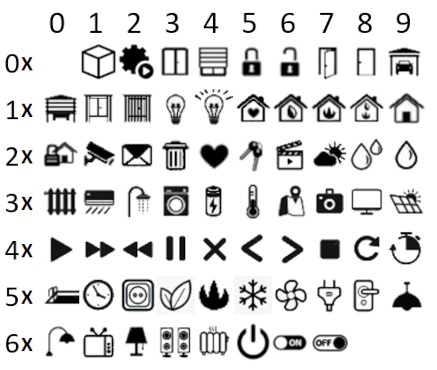
62
63In conclusion, you can use APICall to trigger actions in home assistant from your Garmin smartwatch. I hope this tutorial proved to be useful, and have a great rest of your day (or night).
64
65* Written on `2023-08-04` and republished to this blog on `2024-10-31`